Wen a screen translator useful?
If yuh can select di text an tap Translate, try dat deh built-in iPhone feature fos. Fi a single image, yuh can also translate text inna a saved screenshot. OnScreen Translate is useful wen yuh cyaan select text or waan read several screens inna a row.
Messages an images
Read text inna a shared image, a chat screenshot or a message inna an app weh nuh offer a translation option.
Shopping an delivery apps
Translate product images, menus an delivery information wen di app nuh have di language setting yuh need.
Websites an app menus
Read buttons, labels an text weh yuh cyaan copy. Di translation appear inna a captured image a di screen.
Games
Translate a still menu, description or dialogue. Wait til aal a di tex vizibl bifuo yu chansliet.
Set up Back Tap fi translate
- Download an open OnScreen Translate. Choose di language yuh waan translate inna.
- Follow di Magic Tap instructions inna di app an add di translation shortcut to Shortcuts.
- Open Settings, den Accessibility, Touch an Back Tap.
- Choose Double Tap or Triple Tap an select di translation shortcut weh yuh add. Mek sure yuh select di shortcut radda dan di standard Screenshot action.
- Open a screen wid clear text an use yuh chosen gesture pan di back a yuh iPhone. Read di translated result, den go back to di original app.
If yuh iPhone have an Action Button, yuh can assign di translation shortcut to dat deh button too. Back Tap an di Action Button run di shortcut; OnScreen Translate handle di translation.
Read di translation inna di screen's layout
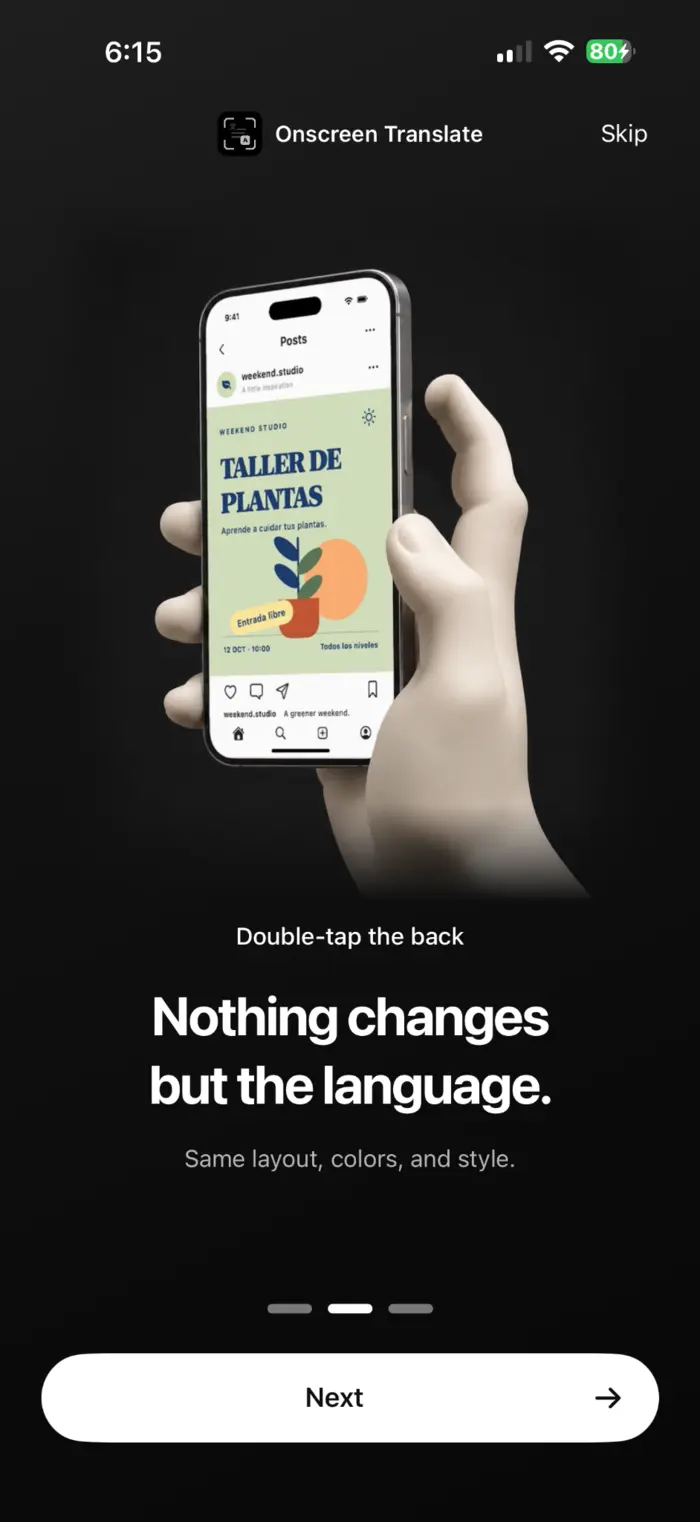
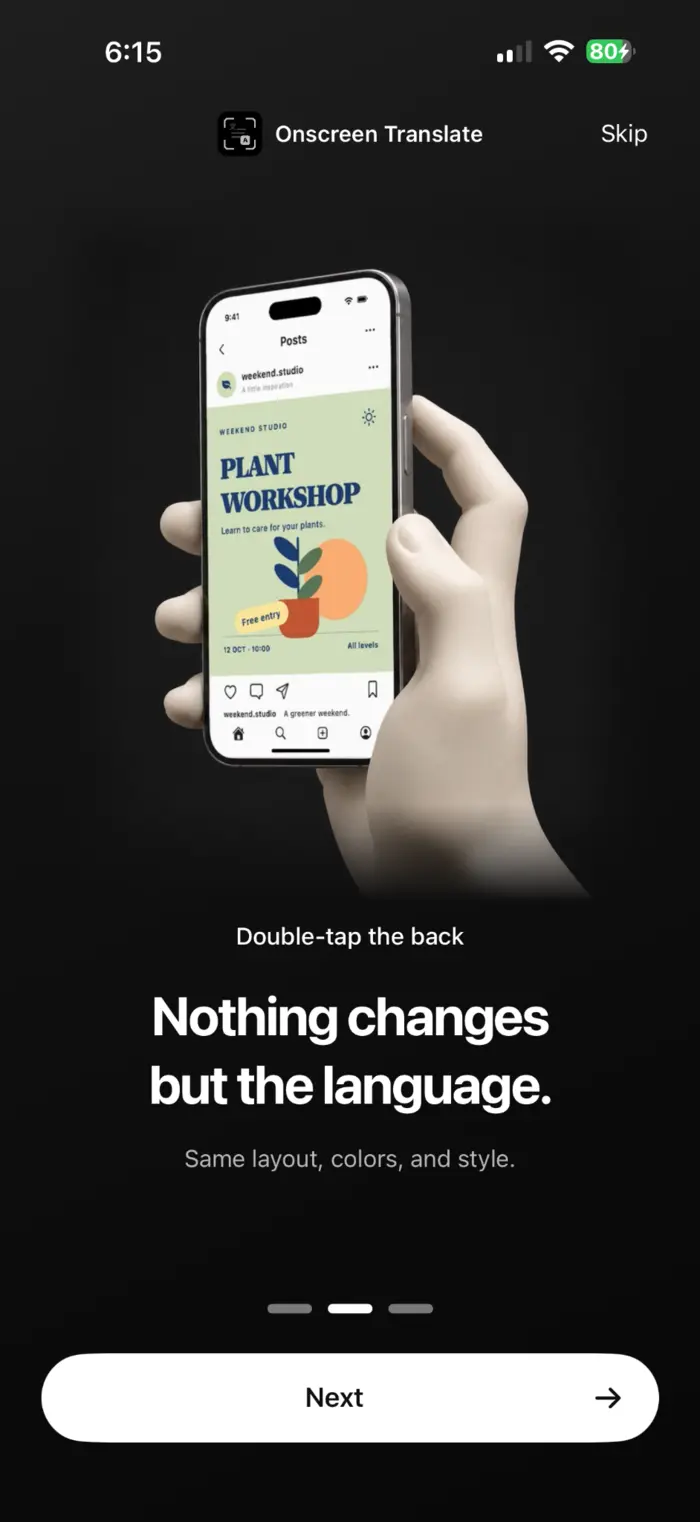
OnScreen Translate try fi keep di layout an styling so yuh can see which text belong to each button or image. Dem example image yah show a Spanish poster an it English translation.
Weh fi know before yuh translate
- Di shortcut capture di screen wen yuh translate. It no translate continuously as yuh scroll or change di buttons inna di original app.
- Small, moving or decorative text can be recognized incorrectly. Check important details against di original.
- OnScreen Translate is free fi download. Afta any free access weh dem offer inna di app, yuh need a subscription fi keep translating. Check di App Store fi prices an any trial offers.
Read di privacy policy fi information bout text recognition, translation an data processing. Privacy policy (English)
Kwestiyan dem weh piipl aks nof taim
Mi can translate di screen widout tek a screenshot miself?
Yes. Wen yuh don set it op, di shortcut capture di screen fi yuh. Yuh translate one screen at a time; it no translate automatically as yuh scroll.
Back Tap only tek a screenshot. Weh mi fi change?
Check di gesture yuh select inna Settings. Choose di translation shortcut fram OnScreen Translate instead a di standard Screenshot action. If di shortcut no deh deh, add it chruu di app fos.
Mi need iOS 26?
Di app need iOS 18.4 or later. Background translation preview need iOS 26 or later. Pan di earlier supported versions, di app open fi show di result.
Mi can translate text weh mi cyaan select?
Yes, if di text clear enough fi recognize. Dis include text inna images, app menu an product information. Tex recognition an translation can contain mistakes.
Try it pan a screen weh yuh waan read.
Choose yuh translation language, set up di shortcut an translate one screen.
Download pan di App Store