Choose your trigger.
Open Magic Tap in Onscreen Translate and choose how you want to start a translation. You can use Double Tap, Triple Tap, or the Action Button on a supported iPhone.
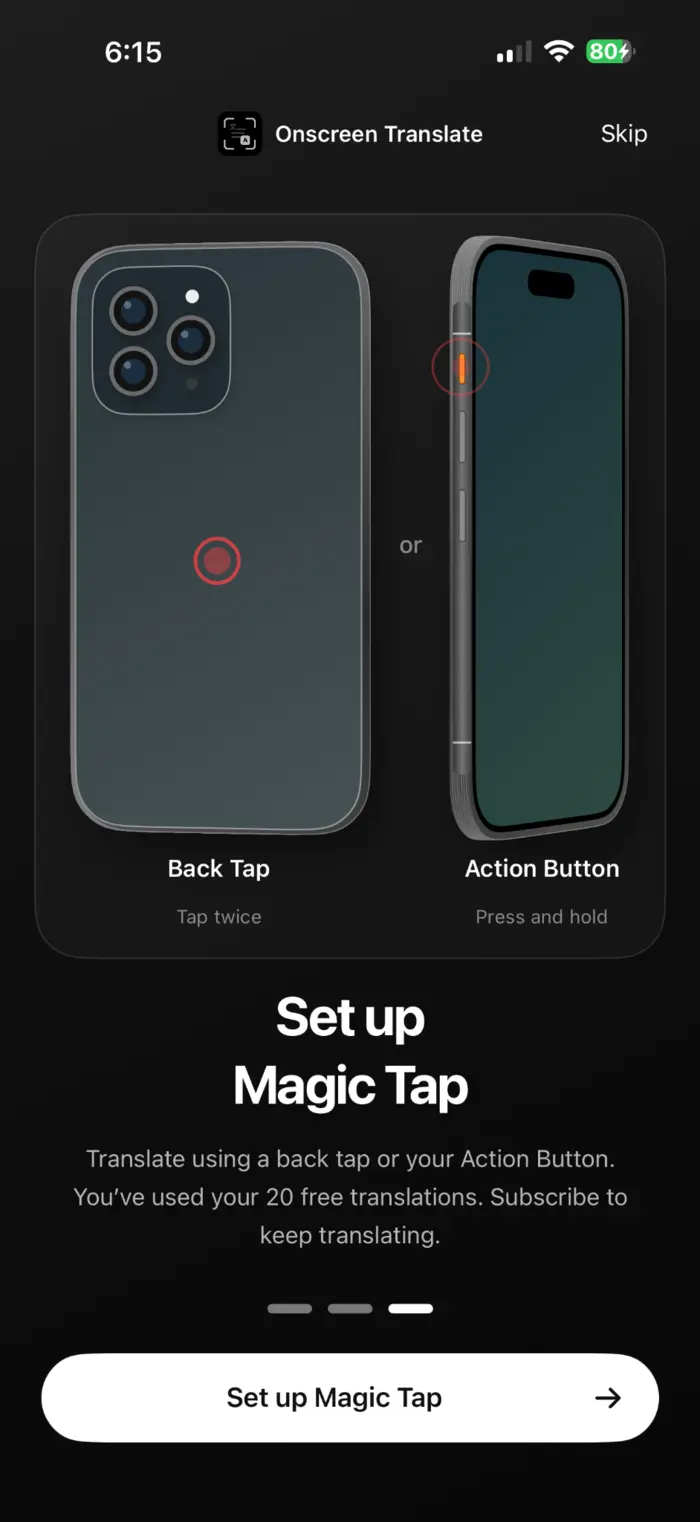
Set up Back Tap: Double Tap or Triple Tap
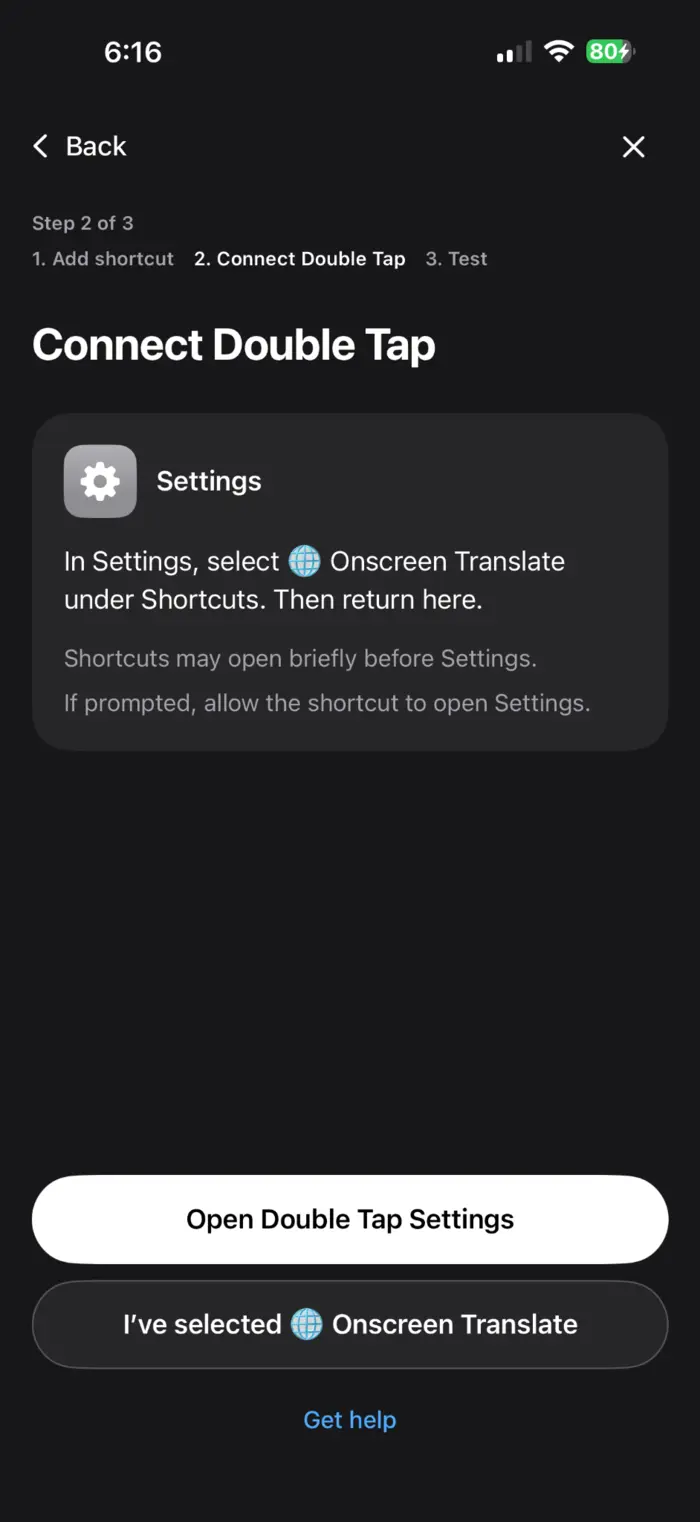
Choose Back Tap in the setup flow, then pick Double Tap or Triple Tap. Onscreen Translate opens the matching iPhone Settings screen so you can assign the shortcut there. You do not have to work through the Accessibility menus yourself.
- Open Onscreen Translate and add the screenshot shortcut from its setup guide.
- Open Settings > Accessibility > Touch > Back Tap.
- Choose Double Tap or Triple Tap, then select the installed Onscreen Translate shortcut.
- Open a screen you want to read and tap the back of your iPhone using your chosen gesture.
If the shortcut is missing, finish adding it in Shortcuts, then return to Back Tap. Check that you assigned the same gesture you are using.
Source: Apple: Use Back Tap on your iPhone
Why this is faster than the manual screenshot routine
Then use it from the screen you want to read.
Open the app, message, listing, or screen you want to understand. Use the trigger you chose. Onscreen Translate creates the translated result while keeping the screen's visual structure.
What happens after you trigger it?
Requires iOS 18.4 or later. Background screenshot previews require iOS 26 or later; earlier supported versions open the app.
The shortcut captures the current screen and translates the recognized text. You read a translated image, then return to the original app to interact with its buttons. It does not change the app itself or keep translating as you scroll. Trigger it again after moving to another screen.
If the result is hard to read
Pause moving content and make small text larger before translating. Low light, reflections, movement and mixed-language text can affect recognition and the result. Check important prices, addresses and instructions against the original.
Photos and camera
You can also choose a photo or screenshot inside Onscreen Translate. Camera translation requires a supported iPhone and camera permission. Use the in-app video guides for the setup that matches your device.
Need more help?
Visit Support if your setup flow does not open the expected setting.