Check the app's language setting first
Some international apps include a language option even when the default interface opens in another language. Check the app's settings before adding another translation step.
If the app already supports your language well, that will usually give you the best experience because menus, navigation, and dynamic content are designed for it.
Translate selectable text with iPhone
When you can press and hold the text, select it and tap Translate. Apple supports translation from the text-selection menu in many first-party and compatible third-party apps.
Source: Apple, Translate text in apps on iPhone
Translate the screen when the interface is the problem
Foreign apps become harder when the words you need are buttons, image labels, cards, menus, product graphics, or interface text that cannot be selected.
Onscreen Translate starts from the screen you are already viewing. Trigger it with Double Tap, Triple Tap, or the Action Button and read the translated result in the screen's original visual structure.
Read the result beside the original
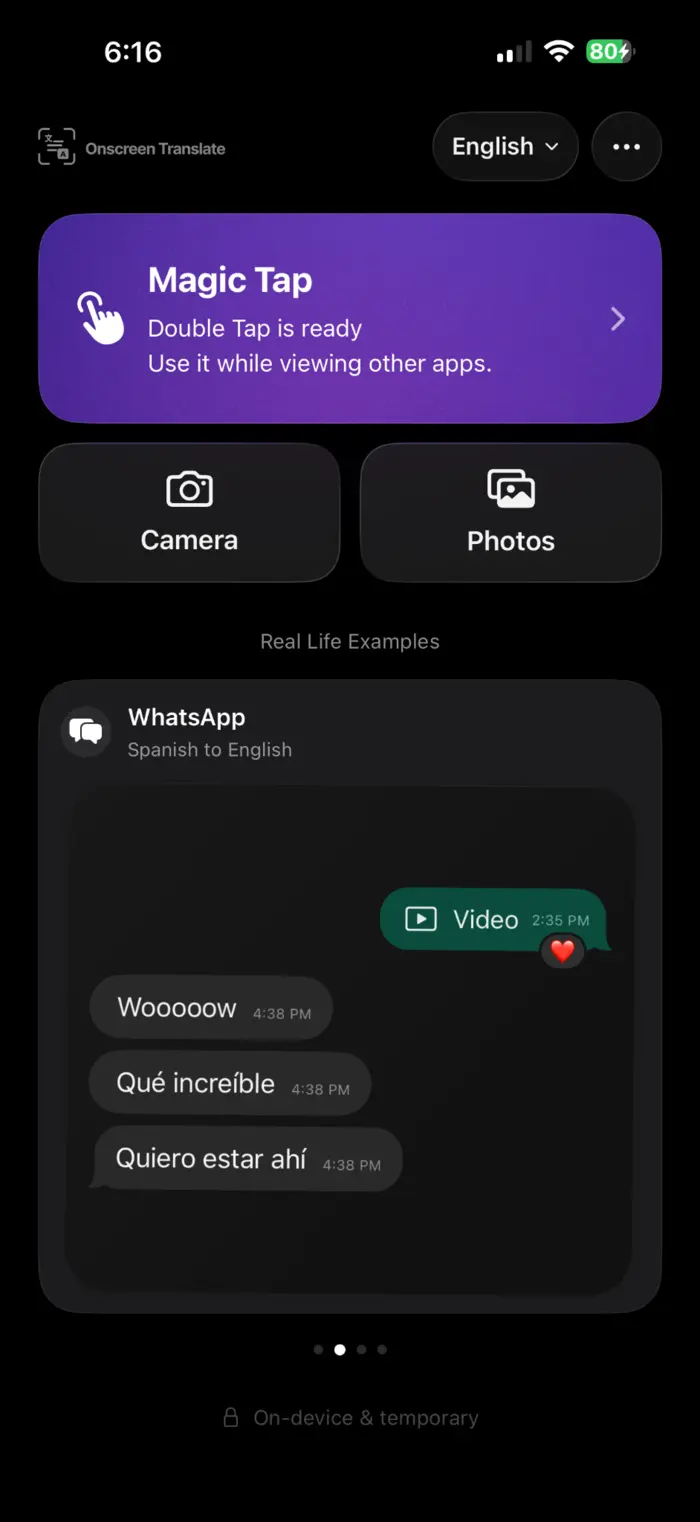
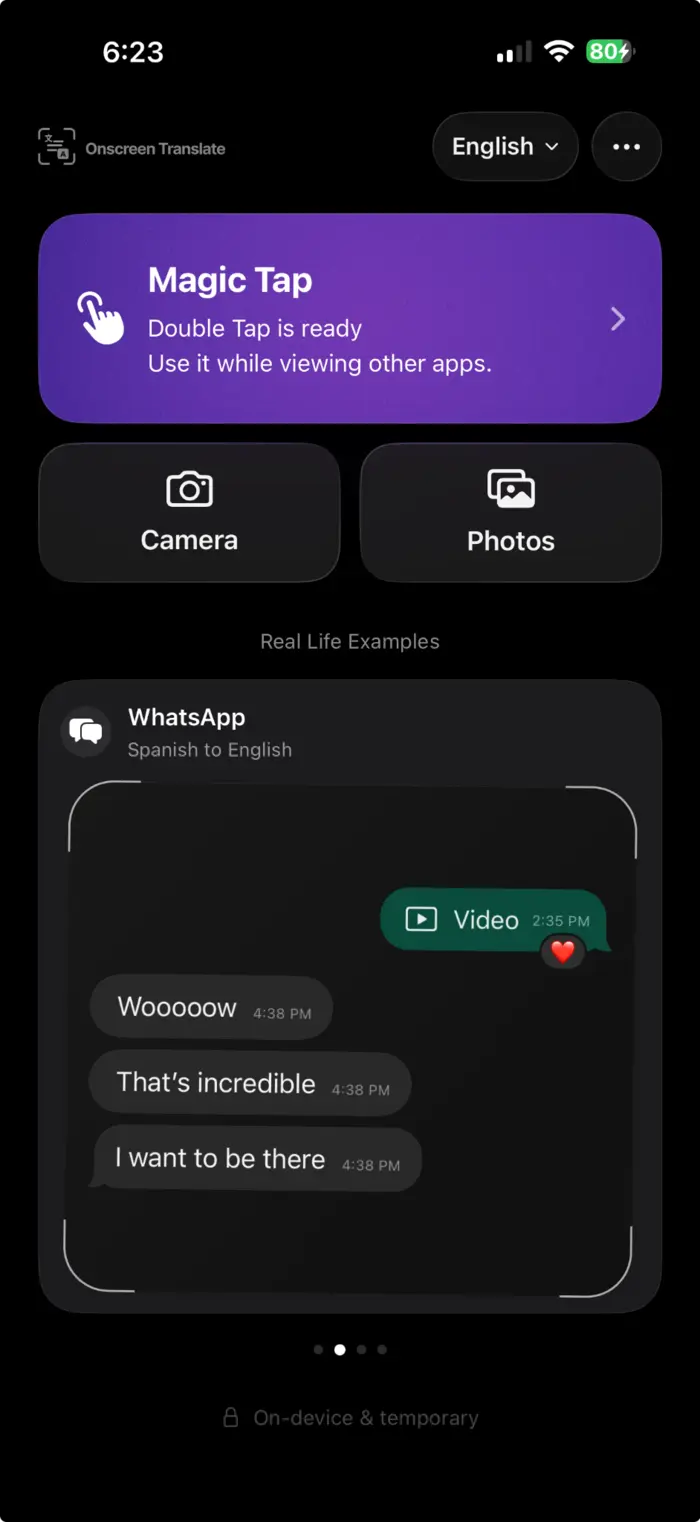
An example from the app’s onboarding, not a customer conversation. The translated image helps you match each message to its position on the original screen.
Where this is useful
Shopping apps
Read product titles, option labels, seller notes, images, and checkout screens when the app's own language support is incomplete.
Local service apps
Translate booking screens, appointment details, delivery updates, transportation apps, and other services that were built mainly for local users.
Community and social apps
Read profiles, event graphics, posts, notifications, and interface text that does not have a translate action.
Static game screens
Translate menus, item descriptions, and dialogue when you need a specific screen. Onscreen Translate is triggered screen by screen and does not run as a continuous live overlay.
Translate apps while traveling
Keep the original layout in view
A translated list of words can be difficult to map back to a screen full of buttons and labels. Onscreen Translate is designed to keep the translated result in the original layout so you can see which translation belongs to which part of the interface.
What can make screen translation harder?
Tiny type, decorative fonts, motion, low contrast, and text over busy images can reduce text recognition quality. Translation can also miss slang or context. For important information, check the original or ask a fluent speaker when possible.
What is the easiest way to translate an app that has no English option?
If its text is selectable, use iPhone's built-in Translate command. If the interface text cannot be selected, use a screen translator so you do not have to copy or screenshot each piece manually.
Do I need to take a screenshot every time?
No. Screenshots are useful for one-off translations, but Onscreen Translate is designed to start from the current screen through the trigger you set up, so you do not have to manually save and reopen each screen.
Can iPhone translate a whole foreign app automatically?
Not as a permanent replacement for the app's interface. Apple's built-in tools translate selected or recognized text. Screen translators can translate what is visible when triggered, but the underlying app remains in its original language.